Minecraft on a Low-End PC: Best Settings for Old Laptops
How to play Minecraft Java smoothly on a low-end PC or old laptop with 4 GB of RAM and integrated graphics: the best settings, versions and mods.
You do not need a gaming PC to enjoy Minecraft. With the right version, settings and a couple of mods, Minecraft runs on a low-end PC with 4 GB of RAM and integrated Intel or AMD graphics, often at a steady 60 FPS. This guide is for old laptops, school computers and budget PCs.
What counts as a low-end PC for Minecraft
If your computer looks like this, this guide is for you:
- 4 GB of RAM (or 6–8 GB shared with a browser and Discord).
- Integrated graphics: Intel HD/UHD, Iris Xe or AMD Radeon Vega built into the processor.
- A dual-core or older quad-core processor.
- A slow hard drive instead of an SSD.
Step 1: pick a light version
Newer versions draw more: taller worlds, more mobs, new lighting. With performance mods the newest versions run well, but on very weak machines older ones are lighter:
- 1.8.9: the lightest, and the favourite for PvP servers.
- 1.12.2: light and great for modpacks.
- 1.16.5: the last version before the taller world.
- 1.20+ and the newest: best with Sodium and the settings below.
Step 2: the settings that save the most
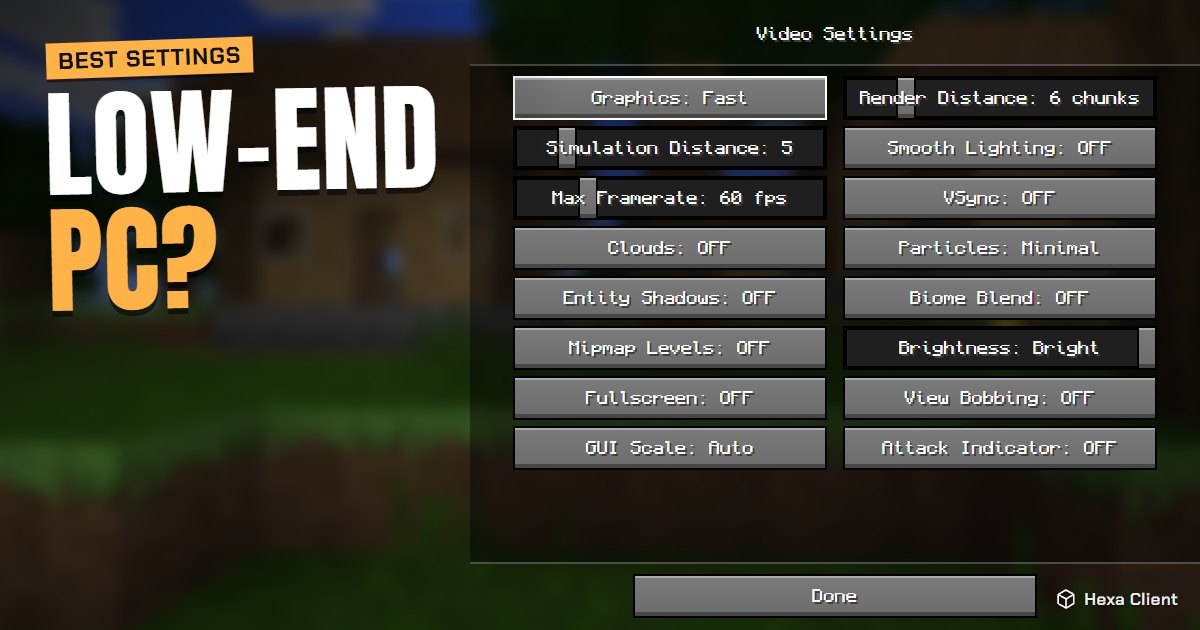
Open Options → Video Settings and set:
| Setting | Value |
|---|---|
| Render Distance | 5 to 8 chunks |
| Simulation Distance | 5 |
| Graphics | Fast |
| Smooth Lighting | Off |
| Clouds | Off |
| Particles | Minimal |
| Entity Shadows | Off |
| Biome Blend | Off |
| Mipmap Levels | 0 |
| Entity Distance | 50% |
| VSync | Off |
These are the same values Hexa Client's potato mode applies with one click, from the launcher or the Hexa menu. It saves your own settings first, so switching it off brings everything back exactly as it was.
Step 3: add performance mods
On a weak PC, mods matter even more than settings. Sodium rewrites how the world is drawn, FerriteCore cuts memory use (great with 4 GB), EntityCulling skips mobs behind walls, and Dynamic FPS stops drawing when you alt-tab, which keeps a laptop cool. Read more in our guide on how to get more FPS in Minecraft.
Hexa Client was built for exactly these computers: when you install it, it checks your RAM and graphics card, picks a preset for your PC and installs the performance mods for each version.
Step 4: RAM on a 4 GB computer
With 4 GB in total, give Minecraft about 2 GB. Giving it 3 GB or more leaves Windows without memory, and the whole computer starts swapping to disk, which is much worse than a lower render distance.
Before playing, close your browser and other launchers. Discord in the background uses 300–500 MB; close it if you can, or at least turn off its overlay.
Step 5: lighter textures and no shaders
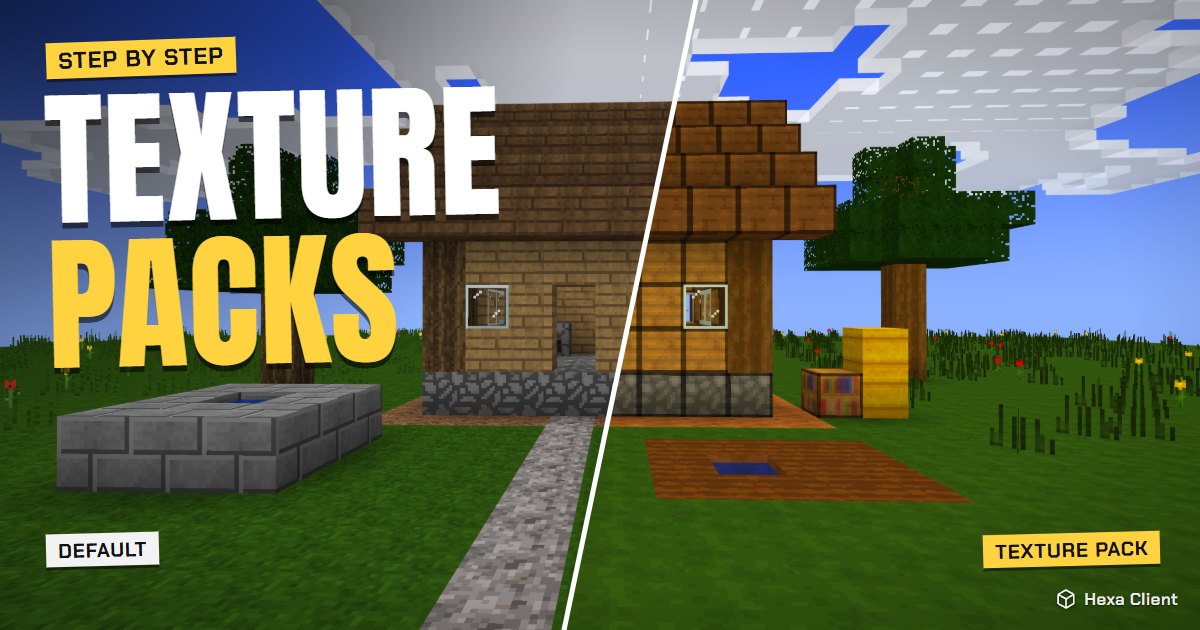
- Stay on the default textures or 16x packs. A 128x pack can use more video memory than an integrated chip has. Hexa Client can make a light 64x copy of a big pack, so you keep its look at a fraction of the cost. See how to install texture packs.
- Skip shaders: even the light ones halve your FPS on integrated graphics.
Step 6: Windows and laptop tips
- Plug in the charger and pick Best performance in Windows' power mode.
- If your laptop has an NVIDIA or AMD chip as well, make sure Minecraft uses it (Settings → System → Display → Graphics).
- Keep the laptop on a hard surface: when it overheats, the processor slows down.
- Update your graphics driver from Intel, AMD or NVIDIA: old drivers cause crashes and missing textures.
Frequently asked questions
Can Minecraft run on 4 GB of RAM?
Yes. Give the game about 2 GB, close other programs, and use performance mods like Sodium and FerriteCore. Most players get 40–60 FPS or more on integrated graphics.
Can I play Minecraft without a graphics card?
Yes: integrated graphics (Intel HD 4000 and newer, Iris Xe, AMD Vega) run Minecraft fine with the right settings. Very old Intel HD 2000/3000 chips only run 1.16.5 and older.
Which Minecraft version is the lightest?
1.8.9 is the lightest of the popular versions. With performance mods, recent versions also run well on most low-end PCs.
Does potato mode delete my settings?
No. Hexa Client saves your settings before switching potato mode on and writes them back exactly when you switch it off.