How to Get More FPS in Minecraft Java (and Stop Lag)
How to get more FPS in Minecraft Java: the video settings that matter, RAM, your graphics card, and the performance mods that double frame rates.
Low frame rates make Minecraft feel heavy: the camera stutters, PvP fights feel unfair and big builds become slideshows. The good news is that you can get more FPS in Minecraft on almost any computer with a few settings and the right mods. This guide goes from the quickest fixes to the biggest gains, so you can stop when the game feels smooth.
1. The video settings that matter most
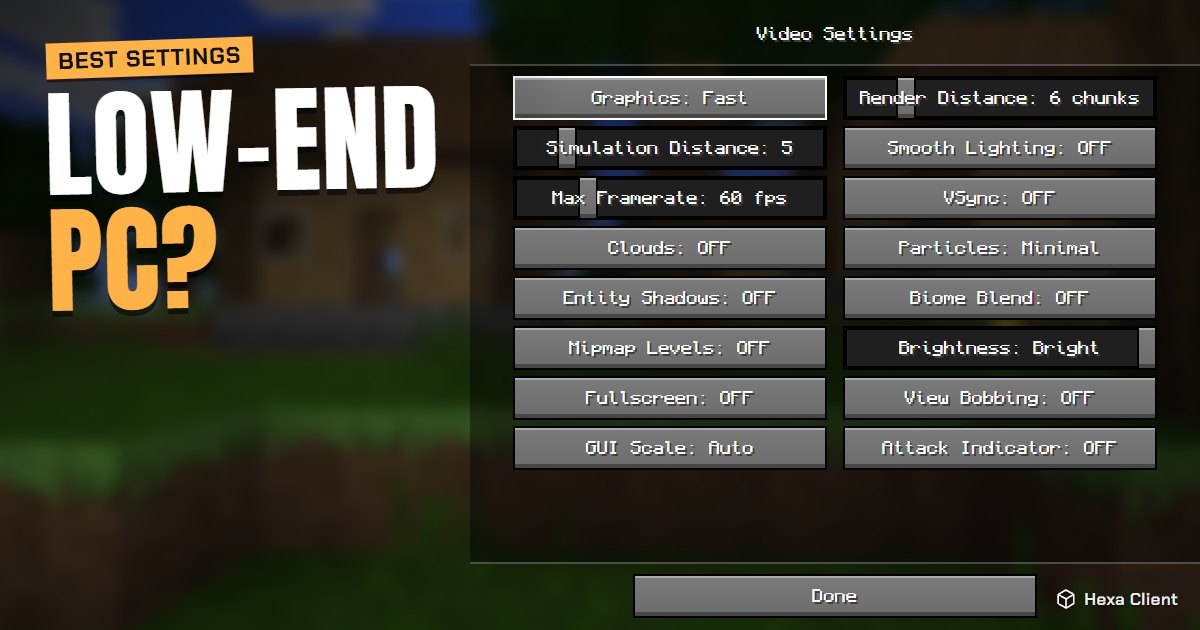
Open Options → Video Settings. These are ordered from the biggest gain to the smallest:
- Render Distance: how many chunks you see. Each step up adds a whole ring of terrain to draw. 8 to 12 is a good balance; 6 if your PC is old.
- Simulation Distance (1.18 and later): how far away mobs and crops keep working. 6 to 8 saves processor time without changing how the world looks.
- Graphics: Fast: simpler leaves and weather. Fancy and Fabulous cost a lot on weak graphics cards.
- Clouds: Off, Particles: Minimal and Entity Shadows: Off.
- Smooth Lighting: Off or Minimum, and Biome Blend: Off.
- Max Framerate: Unlimited (or your monitor's refresh rate) and VSync: Off, unless you see screen tearing.
2. Install performance mods
Vanilla Minecraft's renderer is old. A few free mods rewrite it and are the single biggest upgrade you can make, often doubling or tripling your FPS:
| Mod | What it does |
|---|---|
| Sodium | Rewrites chunk rendering. The biggest FPS boost by far. |
| Lithium | Speeds up game logic: mobs, redstone, physics. |
| FerriteCore | Cuts the memory the game uses. |
| EntityCulling | Skips drawing mobs and chests you cannot see. |
| ImmediatelyFast | Faster text, HUD and item rendering. |
| Dynamic FPS | Lowers FPS when the game is in the background, so your PC stays cool. |
They all run on the Fabric mod loader. Installing them by hand means downloading Fabric, the right version of each mod, and keeping them updated. Hexa Client does it for you: it installs these mods for the Minecraft version you pick and keeps them updated, so you get the boost without touching a mods folder. On 1.8.9 and 1.12.2, where these mods do not exist, Hexa uses its own culling to skip what you cannot see.
3. Give Minecraft the right amount of RAM
More RAM is not always better. Minecraft needs enough memory to hold the world, but giving it too much makes the garbage collector pause longer, which shows up as stutters.
- Vanilla or light mods: 2 to 4 GB.
- Big modpacks or high render distance: 4 to 6 GB.
- Never give it more than half of your total RAM: Windows and your browser need the rest.
In the official launcher this is the -Xmx value under Installations → More options. Hexa Client picks it for you from your PC's memory, and you can change it in Settings.
4. Use your real graphics card
Many laptops have two graphics chips: a weak one built into the processor and a strong one (NVIDIA or AMD). Windows often starts Minecraft on the weak one.
- Open Settings → System → Display → Graphics.
- Add javaw.exe (the Java that runs Minecraft) and choose High performance.
- Also keep your graphics drivers updated from NVIDIA, AMD or Intel.
Hexa Client sets the high-performance graphics card for the game automatically on Windows.
5. Small things that add up
- Plug in your laptop: on battery, Windows slows the processor down.
- Close heavy programs while playing, above all browsers with many tabs and video calls.
- Use fullscreen (F11): it skips work the desktop does for windows.
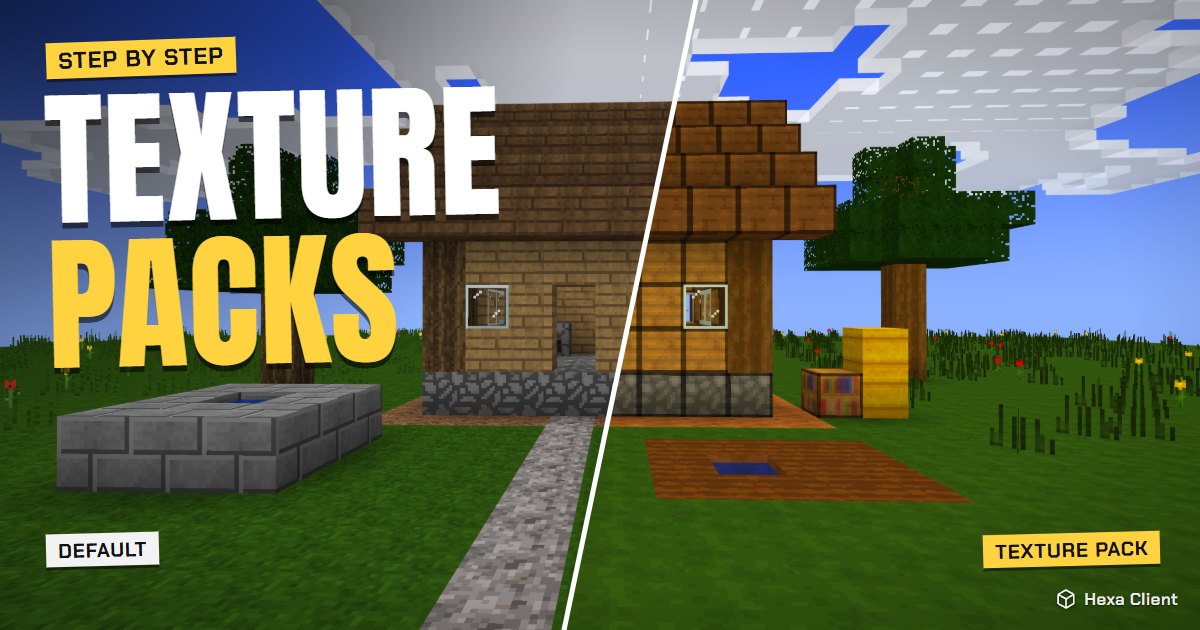
- Avoid huge texture packs (512x and up) on modest PCs; 16x or 32x look great and cost almost nothing. See how to install texture packs.
- Shaders look amazing but are the heaviest thing you can add. If you want them anyway, read how to install shaders for light options.
Still slow?
If your computer is old or has only integrated graphics, there are more tricks (lower resolution, potato mode, lighter packs) in our guide to Minecraft on a low-end PC. And if the game does not even open, start with Minecraft not opening: fixes.
Frequently asked questions
What is a good FPS for Minecraft?
60 FPS feels smooth for building and exploring. For PvP, 120 or more makes aiming and clicking feel more responsive, especially on a 120 or 144 Hz monitor.
Does more RAM give more FPS?
Only up to a point. 2 to 4 GB is enough for vanilla; giving much more causes longer pauses. Never give Minecraft more than half of your computer's memory.
Is Sodium better than OptiFine?
For FPS, yes: Sodium is much faster on modern versions. OptiFine still exists for older versions like 1.8.9, but most players now use Sodium with other Fabric mods.
Why does Minecraft lag even with high FPS?
That is usually server lag or your internet connection, not your PC. If blocks come back after you break them or mobs teleport, the server is struggling, and no video setting fixes that.