How to Change Your Skin in Minecraft Java (Windows, Mac, Linux)
How to change your skin in Minecraft Java: upload it in the launcher, pick Classic or Slim arms, find or make skins, and fix skins that do not update.
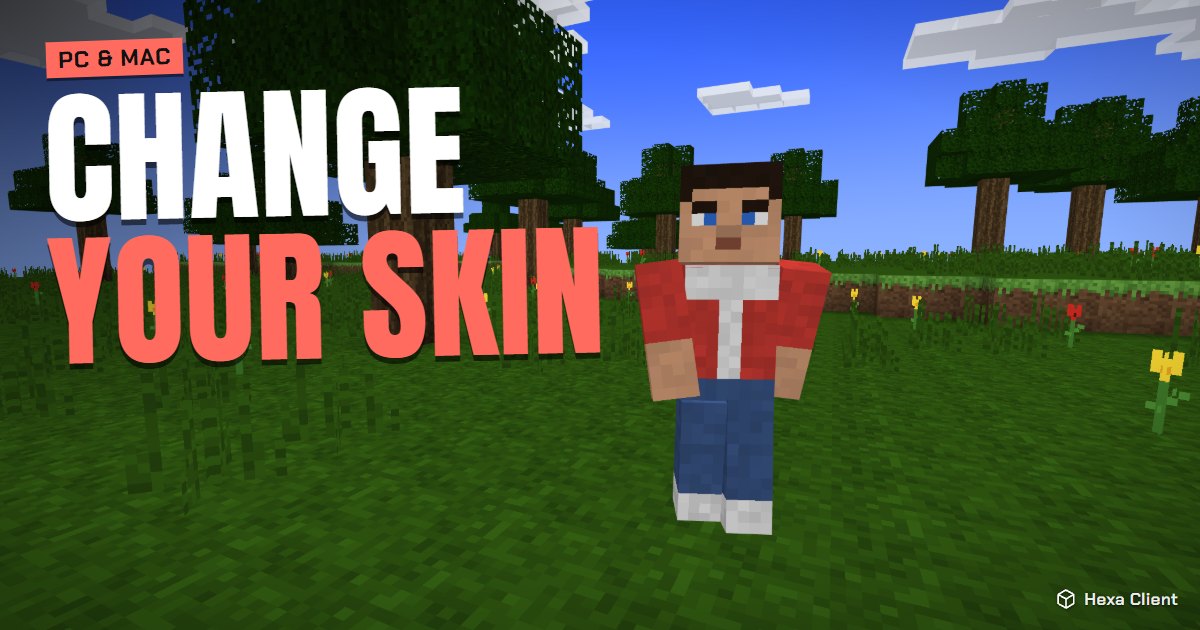
Your skin is how everyone sees you: in the lobby, in PvP, in screenshots. Changing it is free and takes a minute. Here is how to change your skin in Minecraft Java Edition, where to find a great one, and what to do when it does not update.
What a Minecraft skin is
A skin is a small PNG image, 64×64 pixels, laid out like a paper model of your character: head, body, arms and legs, plus a second outer layer for hats, jackets and sleeves. Minecraft wraps it around your character.
There are two body shapes:
- Classic (Steve): arms 4 pixels wide.
- Slim (Alex): arms 3 pixels wide.
Pick the shape the skin was drawn for, or the arms will show a stripe of missing pixels.
Where to find or make a skin
- The Skindex and NameMC: thousands of skins to browse and download.
- Nova Skin and Blockbench: editors to draw your own, layer by layer.
- Already have a skin you like on another player? NameMC shows the skin of any public profile.
Download the skin as a .png file. Be careful with sites that ask you to sign in with your Microsoft password to "apply" a skin: you never need to give a skin site your password.
Change your skin in the official launcher
- Open the Minecraft Launcher and go to Minecraft: Java Edition → Skins.
- Press New skin.
- Choose Classic or Slim, press Browse and pick your .png file.
- Press Save & use.
You can also change it on minecraft.net: sign in, open your profile and upload the skin there. Both update the same Microsoft account.
Change your skin with Hexa Client
Hexa Client keeps a skin library: save as many skins as you like, give them names, and switch between them with one click from the launcher. You can even change skins in game, without restarting Minecraft, from the Hexa menu. It changes your real Minecraft skin, so every player on every server sees it.
My skin did not update
- Wait a minute: Mojang's skin servers can take up to a minute.
- Rejoin the server or world: the game downloads skins when players join.
- Check the arms: a black or see-through stripe on the arms means you picked the wrong model (Classic or Slim).
- Transparent parts in the wrong layer: the base layer cannot be transparent; only the outer layer can.
- Playing offline: skins come from Mojang's servers, so you need a real account and an internet connection.
Skins, capes and cosmetics
Your skin is free and visible to everyone. Capes are different: official Minecraft capes come from events and promotions and cannot be bought. Hexa Client also has its own cosmetics, such as capes, wings, hats and pets, visible to every Hexa Client player. They are only cosmetic and never change gameplay. Browse them in the store.
Want your skin to look its best? Pair it with a clean texture pack, or show it off with your friends.
Frequently asked questions
Is changing your skin free?
Yes. Changing your skin is free and unlimited for anyone who owns Minecraft: Java Edition.
What size should a Minecraft skin be?
64×64 pixels, in PNG. Old 64×32 skins still work, but they have no separate left arm and leg or outer layer.
Why do my arms look wrong?
The skin was drawn for the other model. Re-upload it choosing Classic (4-pixel arms) or Slim (3-pixel arms).
Can other players see my skin?
Yes. Your skin is part of your Minecraft account, so every player sees it on every server.