How to Play Minecraft Java With Friends (5 Easy Ways)
Every way to play Minecraft Java Edition with friends: LAN on the same Wi-Fi, servers, Realms, your own server and joining friends in one click.
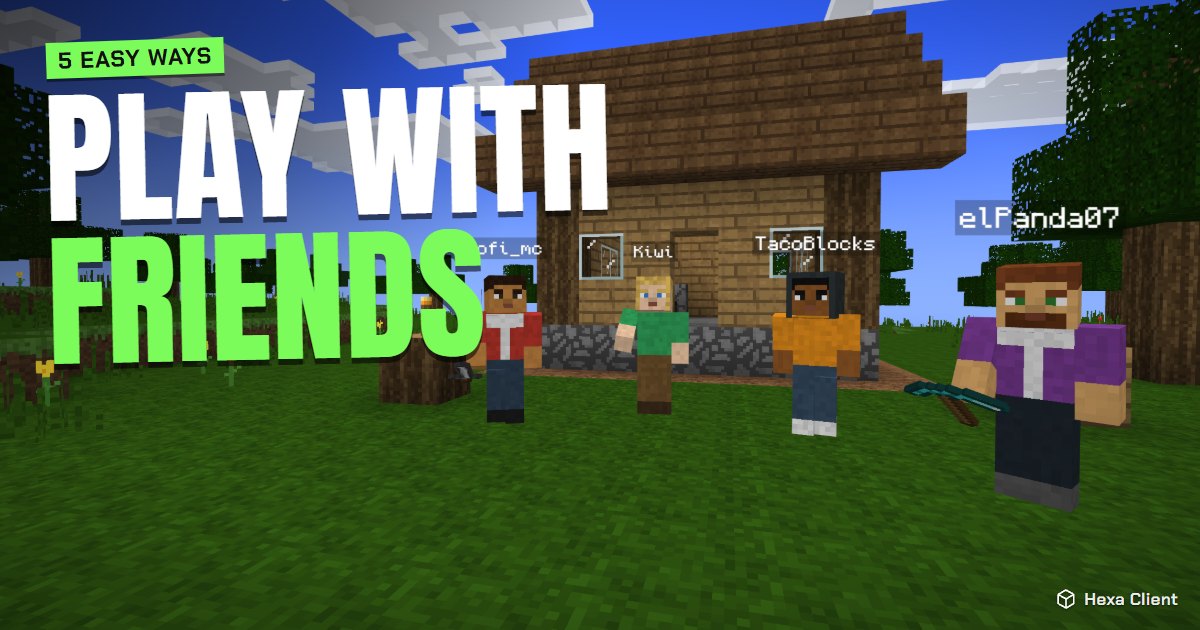
Minecraft is better with friends: building a base together, surviving the first night, or fighting in a minigame. There are five ways to play Minecraft with friends on Java Edition, from free and instant to always online. Pick the one that fits your group.
1. Same house or same Wi-Fi: Open to LAN
The quickest way when you are on the same network.
- One player opens a singleplayer world.
- Press Esc and choose Open to LAN.
- Pick the game mode for guests, whether cheats are allowed, and press Start LAN World.
- The others open Multiplayer: the world appears at the bottom of the list after a few seconds. Double-click it.
If Windows asks whether to allow Java through the firewall, choose Allow on private networks; otherwise your friends will not see the world.
2. Join a public server together
Thousands of servers are free to join: minigames, survival, skyblock, PvP.
- Open Multiplayer → Add Server.
- Type the server address (for example
mc.hypixel.net) and press Done. - Everyone joins the same server, then meets in the lobby or a party.
Not sure where to go? Our popular servers page lists the servers Hexa Client players play on most, with their addresses.
3. Minecraft Realms: always online
Realms is Mojang's own server subscription. You pay monthly, your world stays online even when you are offline, and you invite friends by name. It is the easiest "always on" option for a small group, but you cannot add mods to a Java Realm.
4. Host your own server
Running your own server is free if you use your own computer, and gives you full control: mods, plugins, whitelists and backups. It takes more setup (Java, port forwarding). We explain it step by step in how to make a Minecraft server. Free hosts like Aternos are an alternative if you do not want your PC on all the time.
5. Join your friends in one click with Hexa Client
Hexa Client has a built-in friends list: you see which friends are online and which server they are playing on. Send a party invite and, when you join a server, warp your whole party there at once. You can also chat with friends from the launcher or in game without using the server's chat.
When your friend cannot join
- Different versions: check the version on the title screen (bottom left) and match it.
- "Failed to verify username": one of you is not signed in correctly; restart the launcher and sign in again.
- LAN world not showing: both computers must be on the same network (not guest Wi-Fi), and Java must be allowed through the firewall.
- Connection timed out on your own server: the port is not open. See the port forwarding section of how to make a Minecraft server.
- The game lags with friends: the host's computer runs the world for everyone. Read how to get more FPS in Minecraft.
Frequently asked questions
Can I play Minecraft Java with friends for free?
Yes. LAN worlds, public servers and your own server on your computer are all free. Realms is the only paid option.
Can Java players play with Bedrock players?
Not directly: Java and Bedrock are different games. Some Java servers use the GeyserMC plugin to let Bedrock players join.
How many friends can join a LAN world?
There is no fixed limit, but the host's computer runs the world, so most PCs handle 4 to 8 players well.
Do my friends also need Hexa Client?
No. You can play on any server with players using any launcher. Hexa's friends list and party warp work between Hexa Client players.