How to Make a Minecraft Server (Java, Free, Step by Step)
How to make a Minecraft Java server for free on your own PC: download the server, accept the EULA, open the port so friends can join, and keep it safe.
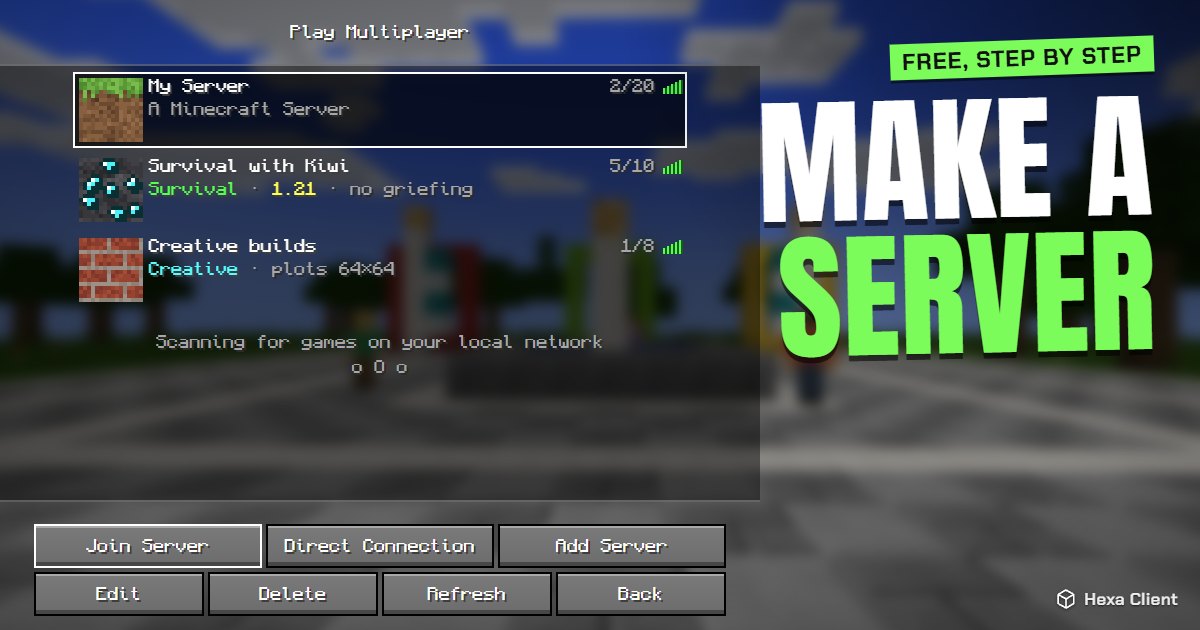
Your own server means your rules: your world online for your friends, with the mods or plugins you want and nobody else. This guide shows how to make a Minecraft server for Java Edition on your own computer, for free, and how to let friends join from anywhere.
What you need
- A computer that can stay on while people play. A server for 2–5 friends needs about 2–4 GB of RAM free and a decent processor.
- Java: recent Minecraft versions need Java 21 or newer, and the newest releases need Java 25. Install a 64-bit JDK from adoptium.net (Temurin is free).
- Access to your router, if friends will join from outside your home.
Step 1: download the server
- Go to the official page at minecraft.net and download server.jar.
- Make a new folder, for example
Minecraft Server, and moveserver.jarinto it. Everything the server creates (the world, settings, logs) goes in this folder.
Step 2: start it once and accept the EULA
- Open a terminal in the folder (on Windows: type
cmdin the folder's address bar and press Enter). - Run:
java -Xmx2G -Xms2G -jar server.jar nogui- The server stops at once and creates a file called
eula.txt. Open it, changeeula=falsetoeula=trueand save. This means you accept Minecraft's End User License Agreement.
Step 3: start the server for real
Run the same command again. The server generates the world; when you see Done in the console, it is ready. Type stop in the console to shut it down safely.
To join from the same computer: open Minecraft, Multiplayer → Add Server, and use the address localhost.
Step 4: let your friends join
Friends on the same network
Find your computer's local address (on Windows run ipconfig and look for IPv4 Address, like 192.168.1.20). Friends at home use that address.
Friends over the internet: port forwarding
- Open your router's settings page (often
192.168.1.1or192.168.0.1). - Find Port Forwarding (sometimes "Virtual Server" or "NAT").
- Forward TCP port 25565 to your computer's local address.
- Allow Java through the Windows firewall when asked.
- Give your friends your public IP (search "what is my IP"). They add it as a server address.
Some internet providers do not allow forwarding (CGNAT). In that case use a free host like Aternos, or a tunnelling service.
Step 5: set it up and keep it safe
Open server.properties with a text editor. The most useful settings:
| Setting | What it does |
|---|---|
online-mode=true | Only real Minecraft accounts can join. Keep it on. |
white-list=true | Only players on the whitelist can join. |
difficulty=normal | Peaceful, easy, normal or hard. |
max-players=10 | How many people at once. |
view-distance=10 | Lower it if the server lags. |
motd= | The text shown in the server list. |
Then, in the server console:
whitelist add Steve— let a friend in.op YourName— give yourself admin commands. See the Minecraft commands list.
Plugins and mods
- Paper is a faster server that also runs plugins (protection, homes, economy). Download it from papermc.io and use it instead of
server.jar. - For mods, use a Fabric or Forge server, and every player needs the same mods.
Play on it with Hexa Client
Hexa Client works on any server, including yours, and nothing needs to be installed on the server. With Hexa's party warp, you can bring your whole group of friends into your server at once. Running a public server? Ask to have it featured in the Hexa Client launcher.
Frequently asked questions
Is it free to make a Minecraft server?
Yes. The server software is free from minecraft.net, and running it on your own computer costs nothing. Hosting companies charge for keeping it online 24/7.
How much RAM does a Minecraft server need?
About 2 GB for a few friends on vanilla, 4 GB or more for 10+ players or mods. Leave enough memory for your own computer.
Why can my friends not connect to my server?
Usually the port is not forwarded, the firewall blocks Java, or they use your local address instead of your public IP. Check each step above.
Can I run the server and play on the same PC?
Yes, if your PC has enough memory: give the server 2 GB and the game 2–4 GB, and join with the address localhost.